Activity
The Activity page shows the status of all backup and restore jobs across your repositories.
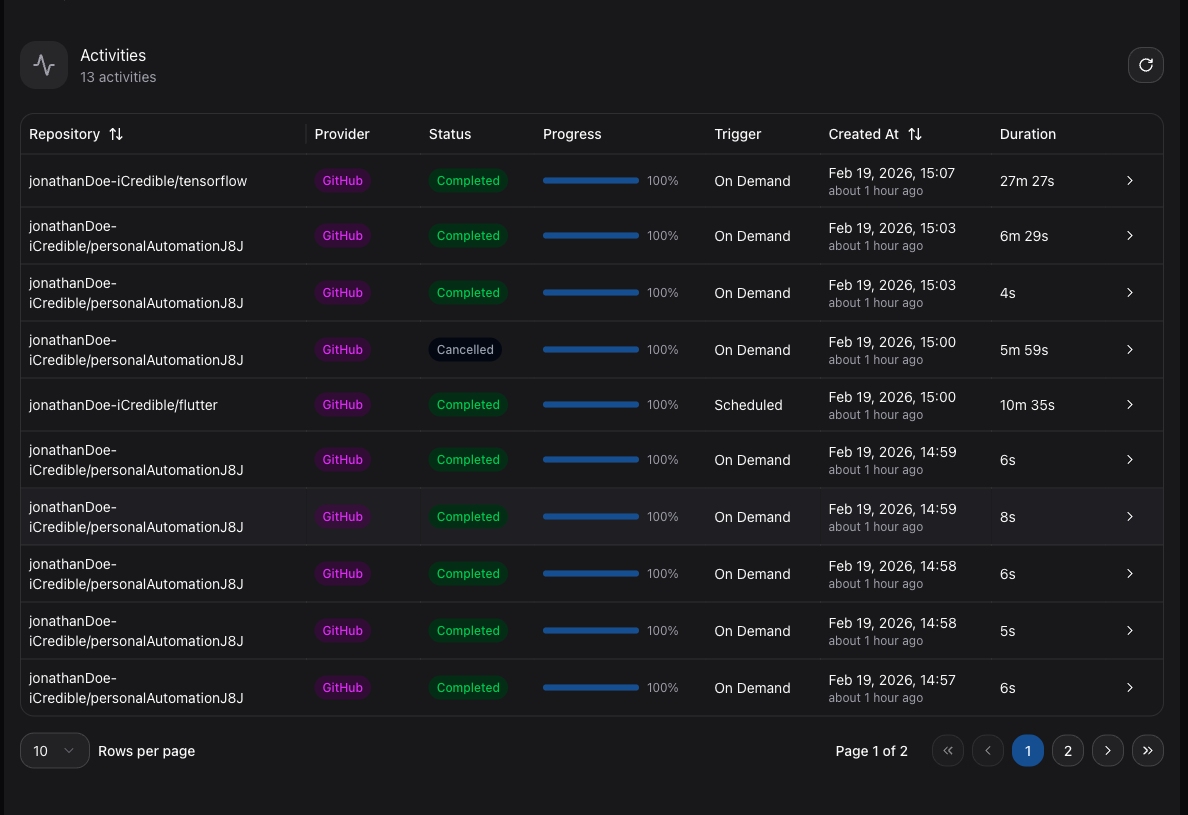
Activity Page
Navigate to Activity in the sidebar to view a comprehensive list of all operations. Each entry shows:
| Column | Description |
|---|---|
| Status | The current state of the job (running, success, or failed). |
| Repository | The repository the operation belongs to. |
| Operation | Backup or Restore. |
| Trigger | How the job was initiated: On Demand, Scheduled, or Push Event. |
| Progress | A progress bar showing completion percentage for running jobs. |
| Start Time | When the job started. |
| Finish Time | When the job completed (if finished). |
Filtering
The activity list is paginated and can be filtered to find specific operations. Use the available controls to narrow results by status, repository, or trigger type.
Per-Repository Activity
You can also view activity for a specific repository from the Activity tab on the repository detail page. This shows only the jobs related to that repository.
Failure Reasons
When a backup or restore finishes as Failed or Partially Completed, GitSec explains what went wrong in plain language:
- Hover over the status badge to see a short summary of the failure, such as
Backup completed with errors: 1 of 3 steps failed. - Expand the row to see the execution details: each included scope (Code & Commits, Pull Requests, Issues, ...) is listed with its own status and message, so you can see exactly which step failed and why for example
Storage quota reached. Free up space or upgrade your plan.orGit provider rate limit reached.
Messages are shown in your preferred language (English or Turkish).
You also receive an email notification when a backup or restore fails. The email contains the same failure reason shown in the dashboard.
Troubleshooting Failed Jobs
If a job shows a failed status:
- Read the failure reason: hover over the status badge or expand the row.
- Verify that your Git provider app installation is still active.
- Ensure your storage provider is reachable and properly configured.
- For push event backups, verify the webhook is correctly registered.
- Retry the operation by triggering a new on-demand backup.