Restore Overview
GitSec's restore feature lets you recover a backup snapshot to a new repository on GitHub or Bitbucket. Restoring into an existing repository is not available yet.
Restore App vs. Backup App
When restoring to GitHub, GitSec uses two separate GitHub Apps:
| App | Permissions | Purpose |
|---|---|---|
| Backup App | Read-only | Reads your repository data to create backups. |
| Restore App | Read & Write | Creates or pushes to repositories during a restore. |
The Restore App is separate because restoring requires write access to create new repositories or push code. This separation follows the principle of least privilege, the Backup App never has write access to your repositories.
The Restore App is installed on-demand when you start your first restore. You will be prompted to install it on the target GitHub organization during the restore wizard.
:::warning All Repositories Required When installing the Restore App, you must select All repositories: not "Only select repositories". The restore process requires access to all repositories in the target organization to function correctly. If you select specific repositories only, the restore will fail. :::
When restoring to Bitbucket, there is no GitHub App to install. Instead, you select a target workspace from your connected Bitbucket account during the restore wizard.
What Can Be Restored?
Currently, the following scopes can be restored:
| Scope | Status |
|---|---|
| Code & Commits | Active |
| Pull Requests | Coming Soon |
| Issues | Coming Soon |
| Wiki Pages | Coming Soon |
| Projects | Coming Soon |
| Releases | Coming Soon |
Global Restores Page
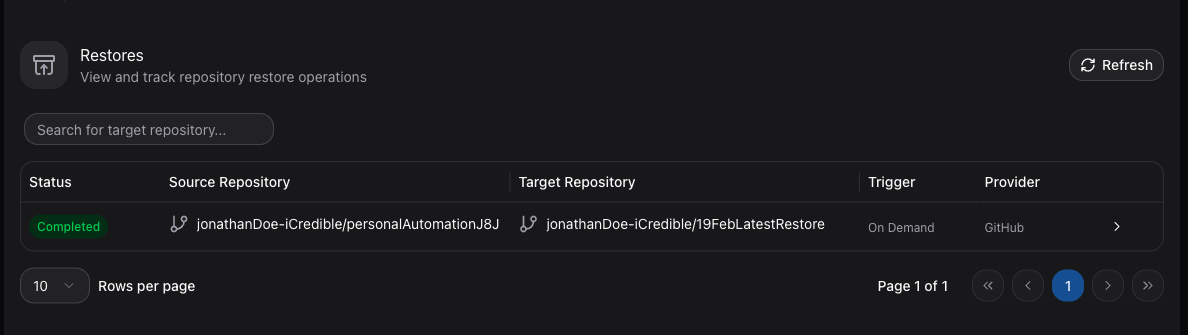
Navigate to Restores in the sidebar to see all completed restore operations. The table shows:
- Target Repository: The repository the backup was restored to, shown with its Git provider icon (GitHub or Bitbucket).
- Source Repository: The repository the backup was originally taken from, also shown with its provider icon.
- Scopes: The content types that were restored (for example, Code & Commits).
- Start Date / Finish Date: When the restore started and finished.
- Elapsed Time: Total duration of the restore.
- Size: The total size of the restored data.
The page also gives you tools to find and track restores:
- Search: Filter the list by target repository name.
- Pagination: Move between pages and change how many rows are shown per page.
- Refresh: Click the refresh button at the top right of the page to reload the list on demand.
Restores that are still running, failed, or were cancelled do not appear on this page, track them on the Activity page instead.
Viewing Restore Details
Ongoing and unsuccessful restores are monitored on the Activity page. Click the expand arrow on any restore row there to see the full details of that restore execution:
| Field | Description |
|---|---|
| Execution ID | The unique identifier of this restore execution, with a copy button next to it. |
| Correlation ID | An identifier that links together all events belonging to this restore, with a copy button next to it. |
| Source Repository | A link to the repository the backup was taken from. |
| Target Repository | The full name of the repository the backup is restored to. |
| Created At / Started At / Completed At | Timestamps for when the restore was created, started, and completed. |
| Duration | The total run time of the restore, shown once it is available. |
| Scope Statuses | Each content type included in the restore, listed with its own status and message. |
| Failure Reason | For failed or partially completed restores, a plain-language explanation of what went wrong. |
When contacting support about a restore, include the Execution ID and Correlation ID: use the copy buttons next to each value to grab them exactly.
Cancelling a Restore
You can cancel a restore that has not finished yet. For example, one that appears stuck or was started by mistake:
- Navigate to Activity in the sidebar.
- Expand the row of the restore you want to cancel.
- Click Cancel Execution. The button is only shown while the restore is Pending or In Progress.
- Confirm the action in the dialog that appears.
The restore stops and its status changes to Cancelled. Restores that have already completed or failed cannot be cancelled.
Starting a Restore
There are two ways to start a restore:
- From the Backups page: Click the restore button on any backup row.
- From a repository's Restore tab: Select a backup and start the wizard.
Both methods launch the Restore Wizard.