Storage Overview
GitSec stores your encrypted backups either on GitSec's managed infrastructure or on your own storage provider (BYOS: Bring Your Own Storage).
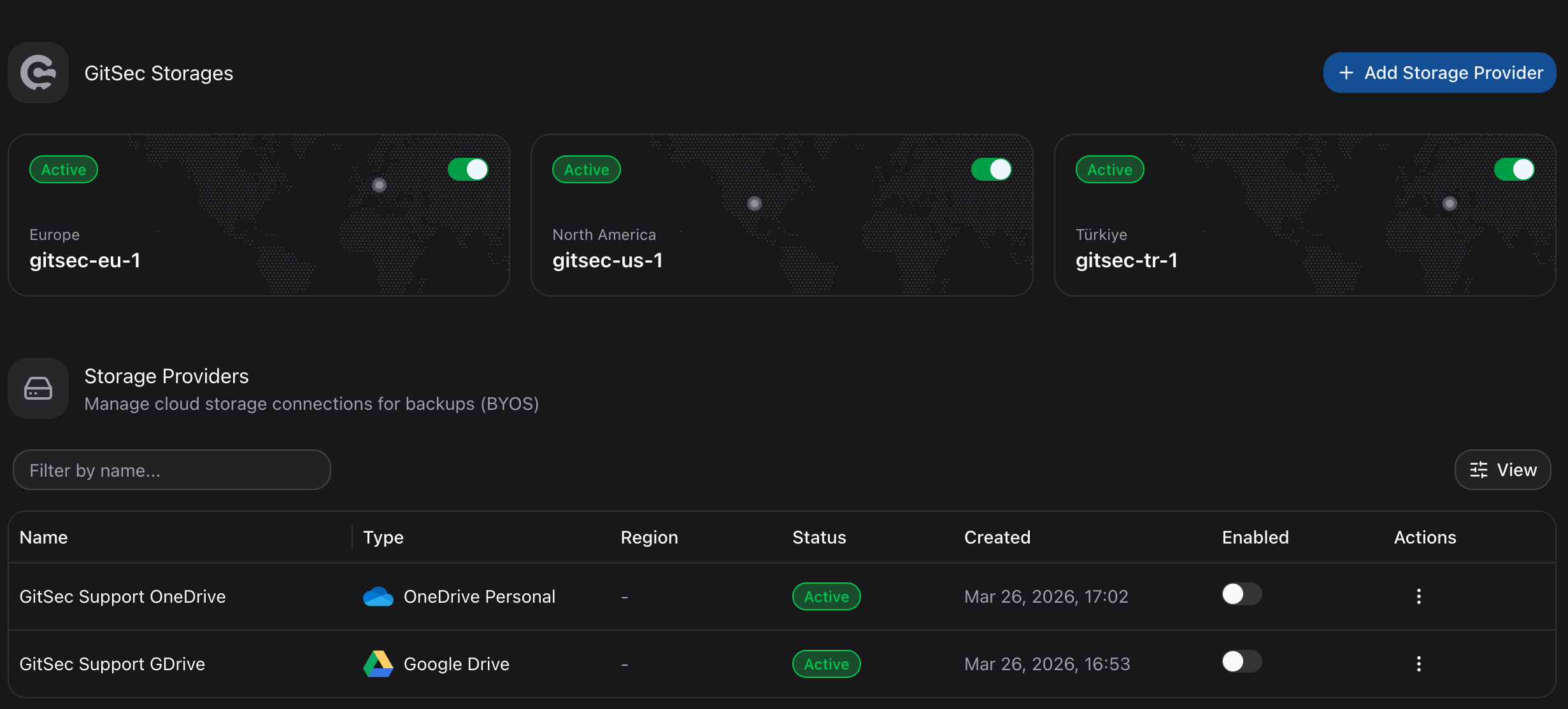
Storage Options
| Option | Description |
|---|---|
| GitSec Storage | Managed, encrypted storage hosted by GitSec in the TR, US, and EU regions. |
| BYOS | Connect your own cloud storage: AWS S3, Azure Blob, Google Drive, Onedrive, or Huawei OBS. |
Storage Page
Navigate to Storage in the sidebar to manage your storage configuration. The page is divided into two sections:
GitSec Storages
Shows the built-in GitSec storage regions available to your account. Each region is displayed as a card showing its region and storage name (for example gitsec-tr-1), along with a status badge and an enable/disable switch. See GitSec Storage for details.
The switch controls whether that GitSec storage is included in your account's default backup replication policy:
- Enabled: new backups are replicated to this storage.
- Disabled: the storage stops receiving new backups.
:::warning At Least One GitSec Storage Required At least one GitSec storage must always remain enabled. If you try to disable the last enabled storage, the change is rejected. :::
Storage Providers (BYOS)
Lists all external storage providers you have connected in a table. You can search providers by name and use the view options to choose which columns are shown. From here you can:
- View each provider's type, region, creation date, and status.
- Turn a provider on or off with the Enabled switch on its row. Disabled providers stop receiving new backups.
- Delete a provider from the row actions menu.
- Add a new storage provider.
Each provider shows one of the following status badges:
| Status | Meaning |
|---|---|
| Active | The provider is configured and available for backups. |
| Passive | The provider is not used in any backup policy. Hover over the info icon next to the badge for details. Assign it to a backup policy or delete it if unused. |
| Deleted | The provider has been removed and no longer receives backups. |
Choosing Delete from the row actions menu opens a confirmation dialog. Deleting a provider prevents future backups to that storage, but existing snapshots in your cloud storage are not deleted. You can still access them directly in your cloud provider's console.
:::info BYOS Requires a Supported Plan Bring Your Own Storage is a plan-tier feature. If your plan does not include it, adding, editing, or testing your own providers is unavailable. See Billing & Plans for which plans include BYOS. :::
Adding a Storage Provider
Click the Add Storage Provider button to see all supported providers:
| Provider | Status |
|---|---|
| AWS S3 | Available |
| Azure Blob Storage | Available |
| Google Drive | Available |
| OneDrive Personal | Available |
| OneDrive Business | Coming Soon |
| Huawei OBS | Available |
Click on a provider card to begin the setup process.
Testing the Connection
Every provider setup form includes a Test Connection button. Clicking it opens a modal that runs a series of checks against your storage and reports the result of each one:
| Check | What it verifies |
|---|---|
| Connectivity | GitSec can reach the storage service with the credentials you provided. |
| Read permission | GitSec can read objects from the storage. |
| Write permission | GitSec can write objects to the storage. |
| Delete permission | GitSec can delete objects it has written. |
| Create / List / Folder delete permission | Additional checks that run depending on the provider type; checks that do not apply are marked Skipped. |
Each check shows a pass/fail result along with how long it took in milliseconds. When the run finishes, a summary shows the total number of tests, how many passed, failed, or were skipped, and the overall response time.
If any check fails, review your credentials and permissions, then click Test again to re-run the checks without leaving the form.